Pages

Monday, January 5, 2015

Viewing SQLite Databases

How to view user data


All blog posts to date
Introduction Acquisition Analysis
Introduction Imaging an Android Device Examining the image
Picking a Toolkit Live imaging an Android device Some hidden artifacts in a physical image
Why not load ClockworkMod or TWRP to image a device? Using Autopsy to examine an Android image
Identifying your Userdata Partition Some artifacts in the /data/system/ directory
Some non-root methods to learn about a device Viewing SQLite Databases
A quick note on imaging newer Android devices Facebook for Android Artifacts
Using Windows to Live Image an Android device Interpreting data from apps
Obtaining all files in the data partition without a physical image Waze for Android forensics
Magnet Forensics App Simulator
App Reversing Other Topics
Reverse Engineering an Android App File The differences between a physical image and a logical extraction
Fun with Apktool Dirty cow
Deep dive into an app Imaging and examining an Android car stereo
Unpacking boot and recovery kernels
MTPwn
Introduction

Android apps by default use SQLite databases to store user data.  When you think Android apps, you may think about Netflix and Pandora and ask yourself why you care about user data associated with those apps.  The reason you care about user data associated with apps is because nearly all user interaction with the device is user interaction with an app.  Have you ever made a phone call on an Android phone?  The phone dialer is an app, and that app stores call logs.  Have you ever sent a text message on an Android phone?  The SMS interface is an app, and the app stores text message history.

SQLite is a lite implementation of a Structured Query Language (SQL) database.  I could go into detail about how SQL works and how the file is formed, but I'll skip the low level details and instead focus on Android relevant SQL information.  This post will cover two main topics:

  • The locations of SQLite databases, including a few keys ones
  • How to read a SQLite database from an Android device

Finding a SQLite database First, Android security prohibits users from accessing the userdata partition, which is where SQLite databases storing user data associated with apps are stored.  You either need an image of the device (and you can create an image using my post on live imaging an Android device) or you need a rooted device.  In this post, I am working from an image of a device.

Android by default stores user data in the /userdata partition in the directory /data.  The below screenshot is from a screenshot of FTK Imager looking at the data directory.


(Note:  some older devices store userdata in a separate location.  I've seen both older Samsung and Motorola devices that have a partition called dbdata.  This partition would store user databases.  But newer devices are pretty standard at this point.  Look to the userdata partition in the data directory first.)

You'll see that within the data directory are directories containing package names.  The directory air.WatchESPN stores user data associated with the WatchESPN app.  The directory com.google.android.youtube stores data associated with the YouTube app.

In fact, let's drill into YouTube for now.  The below screenshot is from the directory /(userdata partition)/data/com.google.android.youtube.


Within this directory, you'll see a directory called databases.  Within the databases directory below ...


.... you can see 14 files.  These files represent the databases associated with YouTube.  I'm willing to bet that the file history.db contains YouTube history.  I extracted this history.db file from the image and opened it in a SQLite browser (more on how to do that below), and I see a table called "suggestions" containing five columns (and in parentheses what I interpret each column to represent):
  • _id (an auto-generated id for each entry in the database)
  • display1 (the stored search suggestion based off user input)
  • display2 (contains nothing)
  • query (the actual text the I typed into the YouTube app to search for a video)
  • date (epoch date / time stamp of the time I searched for a given video)
Here is a sample row from this database: "1","hobbit battle of five armies trailer",,"hobbit battle of five armies trailer","1406574949951"
  • _id in the above example is "1", which I'm going to say is the least recent search in this database
  • display1 is "hobbit battle of five armies trailer" is the stored search suggestion based off a search I made.  Apparently I was interested in seeing the Hobbit movie in December 2014 but as of my writing this I have not seen the movie
  • display2 is blank
  • query is the actual text, which is "hobbit battle of five armies trailer"
  • date is stored as epoch time.  1406574949951 correlates to Mon, 28 Jul 2014 19:15:49 GMT, which I converted using an online epoch time stamp converter
Well there you go.  This database file appears to contain the user's YouTube search history, along with the date and time of each search.  Nifty, huh?
I could deep dive into a few other databaes on the device, but instead I'd rather let you, the reader, explore.  So ... if you have an Android device image to explore, check out the following files:
  • /(userdata partition)/data/com.android.email/databases/EmailProvider.db
  • /(userdata partition)/data/com.android.email/databases/EmailProviderBody.db
  • /(userdata partition)/data/com.android.providers.calendar/databases/calendar.db
  • /(userdata partition)/data/com.android.providers.contacts/databases/contacts2.db (a bit difficult to parse through this one but incredibly useful)
  • /(userdata partition)/data/com.android.providers.downloads/databases/downloads.db
  • /(userdata partition)/data/com.android.providers.settings/databases/settings.db
  • /(userdata partition)/data/com.android.providers.telephony/databases/mmssms.db (also check out the directory /(userdata partition)/data/com.android.providers.telephony/app_parts
  • /(userdata partition)/data/explore the entire com.facebook.katana/databases directory if the Facebook app is installed
  • /(userdata partition)/data/explore the entire com.facebook.orca/databases directory if the Facebook Messanger app is installed
As always, if you have any specific questions about how to read user data, such as text messages, call logs, calendar entries, or more, do not hesitate to contact me.
Reading a SQLite database file
In the above section, I showed where SQLite databases may be on the device.  You can find and extract a SQLite database either from a rooted device or from an image of a device.  Now, how do you actually explore the database file?  It is actually incredibly easy.

First, you'll need the SQLite database file extracted away from your image or you rooted device and stored on your computer in a location you will remember.

There are a few Windows and Linux applications to read SQLite databases.  Autopsy also includes SQLite functionality, so if you are using Autopsy to examine an image, you can use the built-in SQLite plugin.  You can read more about using Autopsy to analyze Android images on a previous post on Autopsy.

My personal favorite method of reading SQLite databases is a plugin for Firefox.  I will demonstrate this plugin tool in this post, but if requested I can show other tools also.  The SQLite Manager is a free download for the Firefox web browser.  If you browse to this page page in firefox you can download and add the add-on to your browser.

NOTE: The SQLite Manager add-on is a developer tool.  The intended audience is developers, not forensic examiners.  This tool has the ability to both read and write to SQLite database files.  Now we are working with an extracted version of the file.  This file is extracted from an image or from a device, so the original is intact even if the file you extracted is altered.  If you choose to use the SQLite Manager tool and need to prove that you have not altered data, it would be wise to create an MD5 or SHA hash of the the database file in the original image before extracting and take another hash of the extracted file on your computer after you examine it in SQLite Manager.  Or, if you are in such an environment where using a non-forensic tool is unacceptable, I would personally recommend opening the image of the device in Autopsy and using the built-in SQLite reader to read your database files.

Once the SQLite Manager add-on is installed, open your Firefox browser and go to the add-ons list.  The SQLite Manager will be there.


Click SQLite Manager.  If you have used SQLite Manager before, you may get this annoying pop-up:


I always click on Cancel because if you click OK you open the last opened database file.  Once the add-on is active, click the open icon.  If you browse over the icon, the text "Connect Database hovers." In the choose file window, make sure you view all files instead of just SQLite files because most Android SQLite database files have the extension .db.  Browse to where you are storing your extracted SQLite database file and open it.  SQLite Manager will now show a list of all tables associated with the database.  In the below screenshot, I opened /(userdata partition)/data/com.android.providers.telephony/databases/mmssms.db, which stores SMS and MMS messages.


On the left side of the interface is a clickable list of tables.  Click on one.  I will be exploring the table sms.  The table then opens up so you can see the data stored in this database file's table.


As you can see, I've blacked out data, but there are three columns in the screenshot of interest:
  • thread_id (The thread, or conversation.  This ID is a number which references the table "threads" in the same database)
  • address (The phone number with which I am texting)
  • date (The date in epoch time of the message)
Out of the current screenshot is another column called "body".  This column stores the actual text of the message.  There are other columns which indicate the status of the message (draft, sent, received, etc) and if the message has been read or not (only applicable to "received" messages).
SQLite Manager allows you to export a table.  Check out the drop down menu Table -> Export Table.  You can export the table you are currently exploring as a .CSV file, which you can open in Excel if you prefer that interface.
And that's how to explore a SQLite database.  It is straightforward.  Now have fun browsing around user data!

Summary
  • Android stores user data from apps, including phone logs and SMS, in SQLite databases
  • You need to pull SQLite files from an image of a device or a rooted device in order to see the contents
  • SQLite database files can be viewed using free viewers
Questions, comments, suggestions, or experiences?  Hobbit movie reviews?  Leave a comment below, or send me an email.

Friday, November 21, 2014

Some artifacts in the /data/system/ directory

A few nice artifacts


All blog posts to date
Introduction Acquisition Analysis
Introduction Imaging an Android Device Examining the image
Picking a Toolkit Live imaging an Android device Some hidden artifacts in a physical image
Why not load ClockworkMod or TWRP to image a device? Using Autopsy to examine an Android image
Identifying your Userdata Partition Some artifacts in the /data/system/ directory
Some non-root methods to learn about a device Viewing SQLite Databases
A quick note on imaging newer Android devices Facebook for Android Artifacts
Using Windows to Live Image an Android device Interpreting data from apps
Obtaining all files in the data partition without a physical image Waze for Android forensics
Magnet Forensics App Simulator
App Reversing Other Topics
Reverse Engineering an Android App File The differences between a physical image and a logical extraction
Fun with Apktool Dirty cow
Deep dive into an app Imaging and examining an Android car stereo
Unpacking boot and recovery kernels
MTPwn
Introduction

In a previous post, I demonstrated how to image an Android device and then I made two different posts on how to examine the image.  You can see by examining an image that your device is divided into partitions.

Android devices are partitioned, and the following partitions should be in every image:

  • data - the partition with user-related data, which may also include a directory representing an SD card
  • system - pre-loaded apps, libraries, settings, images, and more
  • boot - the Android system kernel
  • recovery - the Android recovery kernel

And other devices may have all kinds of other partitions.  Try imaging a Galaxy S4 and see how many partitions FTK Imager and Autopsy recognize.

As you may have reasoned, the data partition is where an investigator will be examining the most.  This partition contains data about the user.  Within the data partition will be a few directories of note:

  • data - data related to installed apps, including the user's text message history, web browsing history, call logs, contacts, Facebook messages, calendar events, etc.
  • app - apps which the user installed.  This directory will contain the actual apk files which the user downloaded or sideloaded and installed
  • media - older devices may not have this directory, but newer Android devices will contain the media directory, which represents an SD card.  This directory will contain photos, unless there is an external SD card in the device, and may contain all kinds of user files.  This directory also includes files the user downloaded using a web browser.

As you also may have reasoned, the data directory is where an investigator will be spending a lot of time.

This post focuses on another directory within the data partition.  This directory is system, which contains more information about user behavior.  This directory contains useful logs that the user is unlikely aware of yet can say a good amount about the user.  I will detail just a few artifacts.  There are far more artifacts than these, but I will detail some useful ones and can field questions about others.

To get to these artifacts, you'll either need to have an image of the device, or you will  need root access.  Non-root users cannot access these files through a shell.


List of installed apps
Check out the file /data/system/packages.xml.  (Note:  The device I used here runs Lollipop, or a newer version of Android.  The packages.xml may contain different data for older versions of the operating system, like Gingerbread and older.)  This file contains a list of all apps installed, plus some extra information about each app.  Here is the entry for ES File Explorer in my /data/system/packages.xml file.

<package name="com.estrongs.android.pop" codePath="/data/app/com.estrongs.android.pop-2.apk" nativeLibraryPath="/data/app-lib/com.estrongs.android.pop-2" flags="4767300" ft="146b6659890" it="14346b1705b" ut="146b665d076" version="212" userId="10109" installer="com.android.vending">
    <sigs count="1">
        <cert index="77" key="3082(bunch of hex ...)733f" />
    </sigs>
    <perms>
        <item name="android.permission.READ_EXTERNAL_STORAGE" />
        <item name="com.android.launcher.permission.INSTALL_SHORTCUT" />
        <item name="android.permission.CHANGE_WIFI_MULTICAST_STATE" />
        <item name="android.permission.SET_WALLPAPER" />
        <item name="android.permission.WRITE_EXTERNAL_STORAGE" />
        <item name="android.permission.ACCESS_WIFI_STATE" />
        <item name="com.android.launcher.permission.UNINSTALL_SHORTCUT" />
        <item name="android.permission.READ_PHONE_STATE" />
        <item name="android.permission.ACCESS_SUPERUSER" />
        <item name="android.permission.BLUETOOTH" />
        <item name="android.permission.INTERNET" />
        <item name="android.permission.WRITE_SETTINGS" />
        <item name="android.permission.CHANGE_WIFI_STATE" />
        <item name="android.permission.VIBRATE" />
        <item name="android.permission.BLUETOOTH_ADMIN" />
        <item name="android.permission.WAKE_LOCK" />
        <item name="android.permission.ACCESS_NETWORK_STATE" />
    </perms>
    <signing-keyset identifier="3" />
    <signing-keyset identifier="5" />
    <signing-keyset identifier="4" />
    <signing-keyset identifier="2" />
    <signing-keyset identifier="1" />
    <signing-keyset identifier="6" />
</package>

There will be such an entry for every installed app.  I'll go over what some of these entries mean.

  • package name="com.estrongs.android.pop" - This is the package name of the app.  Here is quick documentation on what the package name is. 
  • codePath="/data/app/com.estrongs.android.pop-2.apk" - This is the path to the APK, or the application install file.  If you need to investigate an app, or reverse engineer the app, here is the file you should be examining.
  • nativeLibraryPath="/data/app-lib/com.estrongs.android.pop-2" - This is the path to a directory containing native libraries which the app uses.  In my phone, the directory /data/app-lib/com.estrongs.android.pop-2 contains two native library files.  If you are interested in reversing native executables, you can reverse these files and examine.
  • <item name="android.permission.READ_EXTERNAL_STORAGE" (and a bunch more) /> - There are a bunch of entries of Android permissions.  This app contains 17 permissions, ranging from reading and writing to external storage to Internet access to using the vibrate function.  If you ever browse through the packages.xml file and find an app with an extraordinary amount of permissions or some permissions that just seem odd, like a game that has the permission to send and receive SMS, then you might want to take a close look.

The packages.xml file is a useful file to see what all files the user has installed on the device.  This file also lists associated permissions with each app which can be a useful hint to malicious apps, and each app entry also includes a path to the actual APK file so you can reverse the app if you need.


Log of last usage of an app Next, look at the file usagestats/usage-history.xml.  This file contains log entries with the last time a user used an app.  Here is the entry in my phone for the Chrome app.  Note: I imaged my phone in late October 2014.

<pkg name="com.android.chrome">
    <comp name="com.google.android.apps.chrome.ChromeTabbedActivity" lrt="1414545913713" />
    <comp name="com.google.android.apps.chrome.bookmark.ManageBookmarkActivity" lrt="1398440159237" />
    <comp name="com.google.android.apps.chrome.ManageBookmarkActivity" lrt="1391453561436" />
    <comp name="com.google.android.apps.chrome.Main" lrt="1414545745091" />
</pkg>


What you see here are four different activities within the app. Activities, in Android lingo, are basically different screens allowing for user activity.  Each activity above also contains a timestamp in Epoch time of the last time the activity ran.  Here's a handy writeup on Epoch time, in case you are unfamiliar, and here is a nifty Epoch converter.

Based on the log, here is the last time I used each of these activities before I imaged the phone:

  • com.google.android.apps.chrome.ChromeTabbedActivity: Wed, 29 Oct 2014 01:25:13 GMT
  • com.google.android.apps.chrome.bookmark.ManageBookmarkActivity: Fri, 25 Apr 2014 15:35:59 GMT
  • com.google.android.apps.chrome.ManageBookmarkActivity: Mon, 03 Feb 2014 18:52:41 GMT
  • com.google.android.apps.chrome.Main: Wed, 29 Oct 2014 01:22:25 GMT

Apparently I do not use bookmarks very often!  Note, these timestamps are all in GMT.  You'll need to convert this timestamp to the local timezone.
The usage-history.xml file is a useful file.  It will not let the investigator know the complete history for an app, but it will indicate the last time each activity was used.  If a user indicates that he/she has never used an app yet the usage-history.xml file indicates that the app was used yesterday, you may want to investigate some.
Database of accounts on the device Finally, open the file system/users/0/accounts.db in a SQLite browser.  (I intend to at some point do a post on SQLite databases but have not yet.  If you're not sure how to open a SQLite database file, contact me and I'll help you out.)  Here's what the "accounts" table of my accounts.db file looks like in a SQLite browser (with personal information blacked out):


This database file includes a table called "accounts", which is a list of accounts associated with the device.  The three accounts seen above are a Google account, a Facebook account, and a LinkedIn account.

Each entry has three columns of data: name, type, and password.  Name is the username associated with the account, and in all three cases above the username is an email address.  The type is the account provider.  You can see above that my accounts are clearly Google, Facebook, and LinkedIn.  And the password contains a hashed version of the password.  The actual password in plaintext is not included.

This file is a useful list to see what services a user frequently uses.  I can't say I am on LinkedIn all that frequently, but I use Google and Facebook frequently.


Other artifacts There are all kinds of other useful artifacts - battery stats, process states, network states, the wallpaper image, and some more.  If you are an Android enthusiast, I highly enjoy exploring the /data/system directory further.  You may find some more useful artifacts.

Finally, do you have some insights into useful artifacts in /data/system?  If so, comment below.  I'd be happy to field questions and I also am always eager to learn more.

Summary
  • The /data/system directory includes useful logs about the user and user behavior
  • The file /data/system/packages.xml contains a list of installed apps including the APK path and a list of permissions
  • The file /data/system/usagestats/usage-history.xml contains logs of the last time a user used an app
  • The file /data/system/users/0/accounts.db contains a list of accounts and associated usernames and service providers
Questions, comments, suggestions, or experiences?  Leave a comment below, or send me an email.

Thursday, November 6, 2014

Using Autopsy to examine an Android image

A solid, open source tool


All blog posts to date
Introduction Acquisition Analysis
Introduction Imaging an Android Device Examining the image
Picking a Toolkit Live imaging an Android device Some hidden artifacts in a physical image
Why not load ClockworkMod or TWRP to image a device? Using Autopsy to examine an Android image
Identifying your Userdata Partition Some artifacts in the /data/system/ directory
Some non-root methods to learn about a device Viewing SQLite Databases
A quick note on imaging newer Android devices Facebook for Android Artifacts
Using Windows to Live Image an Android device Interpreting data from apps
Obtaining all files in the data partition without a physical image Waze for Android forensics
Magnet Forensics App Simulator
App Reversing Other Topics
Reverse Engineering an Android App File The differences between a physical image and a logical extraction
Fun with Apktool Dirty cow
Deep dive into an app Imaging and examining an Android car stereo
Unpacking boot and recovery kernels
MTPwn
Introduction

Autopsy is an open source digital forensics tool by Basis Technologies.  This is a powerful free tool with many of the same capabilities as the expensive tools (FTK, EnCase).  Some people in the digital forensics community will debate until they are blue in the face over whether open source forensics software is better or if paid software is better.  This is a debate from which I will spare my readers, but I'll say this: Autopsy is a fantastic tool.

I've had all kinds of success with Autopsy before.  There have been several times where FTK Imager did not properly load an image.  Errors included not recognizing the image as an image or missing partitions.  In all cases where FTK Imager has made these sorts of mistakes, Autopsy has come through for me.
And on top of the above statement, I was using an old version of Autopsy which did not include specific Android functionality.  I was using a version of Autopsy which was reading a disk image as a disk image, not as specifically an Android image.  Autopsy's file system engine does an incredible job at identifying partitions and file systems.  This has been a tool which I have used with all kinds of success.
In this post, I will load an image of my personal Nexus 5 into Autopsy and will show some of the useful functionality for investigations.  I created the image using the same method in my post on live imaging an Android device.
Getting started Download and install the newest version of Autopsy from this link.  (Note: the downloads are for Windows.  You can download the source for Autopsy and compile it for Linux.  I have not done this yet but intend to soon.)
Once the software is installed, open Autopsy and create a new case.  Fill in the basic info.  The entry for "Base Directory" is where you intend to store data related to cases.  This directory is not necessarily where you store an image you intend to examine and analyze, but it stores information and analyses about the image.  Be advised, this directory can get filled up quickly.  My phone is 32 gigabytes, and my base directory now contains 7 gigabytes of data.


Next, add your Data Source, or your image.


Autopsy has several "ingest modules" built in for analysis.  These ingest modules identify files and extract known data as records, such as emails or time-based data.  You can select or deselect whatever modules you want.  The more ingest modules you select, the more time and disk space the analysis will take, but you also may find more insight about the image with more modules.  Do be sure to select the "Android Analyzer" module when analyzing an Android image.


You can also optionally give a case number or an investigator name.  Yes, you are an investigator, so take credit.

Once the case is created, you can see the main Autopsy interface.


At this point, analysis will be ongoing.  The ingest modules each pass through the image to find relevant data.  In the bottom right corner there is a status bar which you can click on to see analysis status.  In the below shot, there are three different ingest modules working simultaneously.


Depending upon how big the image is, how many files are in the image, how many modules you select, how much disk storage space you have, how fast your computer's processor is, and how much RAM you have, analysis may take a while.  I'm running Autopsy on a Windows netbook and analyzing an image of a 32 gigabyte phone took around an hour.  You can browse around the image and do some investigation before the ingest modules are done, but you will be viewing incomplete results.  For example, there is a great tool for timeline analysis which I will show later in this post.  If you try to do a timeline analysis before the modules are complete, there will be evidence missing from the timeline.

You also can always wait for the analysis to complete before getting started.

Android Analyzer module
I indicated above to enable the Android Analyzer module.  This module will identify files containing contact data and communications records.  I said above that ingest modules will extract records and present them to the investigator.  The below screenshot indicates that Autopsy identified Call Logs, Contacts, and more.  I can tell you that the Android Analyzer ingest module is to credit for these finds.  You can click each of these and see what data was collected.


Android by default stores your text messages in a SQLite database in the file /data/data/com.android.providers.telephony/databases/mmssms.db, and you can load this file into a SQLite database viewer to see the SMS.(Note:  one of these days I intend to do a post on viewing SQLite database files.  The long and short of it is Android apps, including SMS and phone dialer and contacts, use SQLite databases to store data.  The apps present data in their own ways, such as SMS conversations, but you can always view the raw data stored as it is stored in a SQLite database viewer.)

Below is how Autopsy presents SMS.


(Black boxes inserted for privacy.)

Convenient?

Here is the call log ...


... and here is the contacts list.


Browsing the image
Autopsy allows you to browse through the image.  The below screenshot shows all of the partitions which Autopsy identified.  You can see the userdata partition, which will store most of the data about the user.


And then you can browse through the individual partitions.


You can view individual files as text or hex.  You can also see extracted strings and metadata about the file.  And picture files load as pictures.

Timeline
One of Autopsy's best features is the timeline.  Autopsy will find events associated with a date and time, such as text messages or call logs or any other time-based events, and make a timeline of events.  As an investigator, I always like to create a timeline of events which a digital device has recorded because all of these events ultimately tell the story about a person using the device.

To create a timeline, go to Tools -> Timeline.  (Wait for all ingest modules to finish first.)  Then wait for a bit, and when the timeline is ready it opens in a new window.


The timeline clearly indicates a lot of activity in 2013-2014.  But you may also see a weird anomaly around 1970.  Do not worry about those or the odd 2008 files as those are Linux and Android artifacts, respectively, and they deal with "Unix time" or "epoch time."  For a quick explanation on how Linux keeps time, check out this Wikipedia page.

You can zoom in to see detailed events.  The following is my phone events from October 10-23 2014.


The bar colors represent different events as seen in the legend on the timeline.


You can choose to view "Details" instead of "Counts" which allows you to see what events occurred.


And then you can also zoom in for more details.  I see that there is an SMS event, so I chose to see details of the event.  (SMS message blacked out for privacy.)


The timeline is just an incredibly useful tool.  And it is a tool that the more you use it, the more uses you find with it.

More features
Autopsy has many more features which I'll let you explore.  But just to list a few that I've used before:

  • Plugins
    • You can download plugins to act as further ingest modules or even develop your own
  • Extract files
    • You can extract files to analyze them with other tools, such as a hex editor of choice or an advanced media file analysis tool
  • Report
    • Like with other forensic tools, you can tag files of interest and generate a report highlighting important files and other findings
  • Known hashes
    • If you have a list of hashes of known files you are interested in finding, you can load this hash set into Autopsy and it will let you know if it found these files
  • Carving
    • Autopsy includes Scalpel for data carving


Summary
  • Autopsy is an awesome tool.  This point deserves an individual bullet
  • You can browse an image like in FTK Imager but I've had cases where FTK Imager fails to load an image properly and Autopsy has correctly loaded the image
  • Ingest modules process through evidence and extract useful records
  • The Android Analyzer ingest module can extract contacts, SMS, Calls, and more
  • Autopsy's timeline tool is incredibly useful in investigations
Questions, comments, suggestions, or experiences?  Open source vs paid forensic software debate? Leave a comment below, or send me an email.

Monday, October 20, 2014

Some hidden artifacts in a physical image

Always get a physical image


All blog posts to date
Introduction Acquisition Analysis
Introduction Imaging an Android Device Examining the image
Picking a Toolkit Live imaging an Android device Some hidden artifacts in a physical image
Why not load ClockworkMod or TWRP to image a device? Using Autopsy to examine an Android image
Identifying your Userdata Partition Some artifacts in the /data/system/ directory
Some non-root methods to learn about a device Viewing SQLite Databases
A quick note on imaging newer Android devices Facebook for Android Artifacts
Using Windows to Live Image an Android device Interpreting data from apps
Obtaining all files in the data partition without a physical image Waze for Android forensics
Magnet Forensics App Simulator
App Reversing Other Topics
Reverse Engineering an Android App File The differences between a physical image and a logical extraction
Fun with Apktool Dirty cow
Deep dive into an app Imaging and examining an Android car stereo
Unpacking boot and recovery kernels
MTPwn
Introduction In my previous post, I discussed the differences between a physical image and the results of a basic Android forensics tool.  This post is a dive into some artifacts of a physical image which a logical extraction tool will not find.  Note:  this is a basic dive, not a deep dive.  The results should not be too surprising, but this post demonstrates some good reasons to obtain a physical image and browse the image in depth.


Initialization

For ease sake, I used an Android emulator instead of a physical device.  If anybody would like, I can redo the process on a physical phone.  Just let me know if that is important to you and I'll get on it.

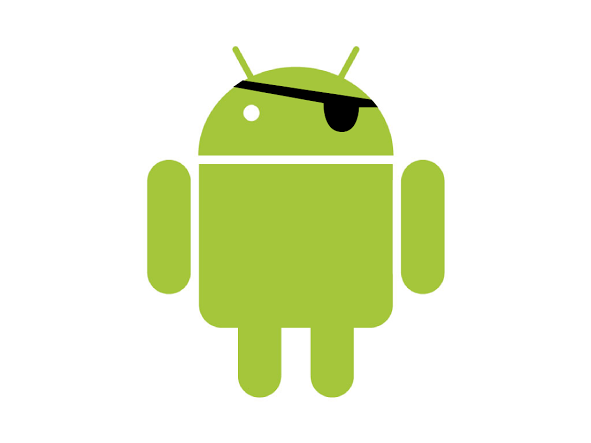
I loaded the following PNG picture to the phone's /sdcard partition at the root.


Pirate Android!!

And then I sent a text message.  (This is an emulator, so the message doesn't actually go anywhere, but the emulator will store data just the same way regardless.)


I deleted the Pirate Android image, and then I deleted the text message.


Extractions

I performed some basic extractions.  First, I ran the Open Source Edition of viaForensics' viaExtract tool, which is included free with Santoku.  viaExtract is a basic logical extraction tool that can extract SMS.

Then I used the Android shell to browse through the Android emulator to see what files exist and do not exist.

And finally, I emulated a physical image of the device.  What I mean by an emulated physical image is I copied the files which represent the emulator's storage and viewed them with a hex editor.  On Linux, these files are stored at /home/<username>/.android/avd/

The above extractions represent a logical extraction, logical browsing, and a physical extraction.


Results

The viaExtract tool did not detect the deleted text message.  viaExtract uses device APIs to extract data and stores the extracted data in CSV files.  The below image is the CSV file containing discovered SMS messages, which in this case is none.  (And for what it is worth, I have run this tool on emulators before and I can confirm that viaExtract can successfully extract SMS from an Android emulator, so the results from viaExtract do not represent an error.)


When browsing through the emulator's SD card, the Pirate Android file is gone, predictably, as I deleted the file previously.


The physical image contained some more interesting results.  First, I used a hex editor to explore the userdata partition and found in slack space the deleted SMS.


The deleted message clearly contains the deleted text ("You will never find this message!" and the "recipient" ("678-9").

I also found a PNG image in the image of the SD card.


So I copied the beginning to the end of the PNG file I found in slack to a new file and opened the resulting file as a graphical file and ...


Pretty cool, huh?

Discussion

So what can explain all of these results, and what does it all mean?

viaExtract is a basic logical extraction tool and relies upon device APIs to extract data.  The device presents an API to extract SMS messages, but there is no API to extract deleted messages.  There is no way that any logical extraction tool will be able to leverage only device APIs to extract deleted SMS.

Note:  the tool from viaForensics is a basic logical extraction tool.  viaForensics has some true experts who can do the dive demonstrated in this post and way, way better.  The folks at viaForensics are definitely experts in mobile forensics.  I personally respect the company greatly.  I chose the viaExtract tool because it is a basic logical extraction tool and it is free with Santoku.

It should not be a surprise that a deleted file does not show up when shelling into the emulator.  As seen above, the Pirate Android image is not in the device according to the shell.  A device shell can only display what files the file system knows exist, and the file system knows that the Pirate Android image is deleted.

So why was I able to recover a deleted text message and a deleted picture?  The reason is simple: the deleted text message and the deleted picture were not overwritten or destroyed.  As long as data is not overwritten, it can be found in a physical image using a hex editor.

The big picture of this post is that you really want a physical image, and you also really need to examine the image using a hex editor.  It can be hard to find artifacts, but these artifacts are there. A digital forensics expert should be proficient with a hex editor.

There are some ways automate finding artifacts, such as file carving.  I recommend using a variety of automated tools, and I have a relevant example here.  I used scalpel, an open source file carving tool, and scalpel actually did not recover the Pirate Android image.  I would bet that if I tried several other file carving tools, at least one tool would have recovered the Pirate Android.  Not all tools work all the time, but the more tools you try, the better results you will get.  But of course, you can always use a hex editor and take a lot of time to find as many artifacts manually as you can.

Summary

  • Logical extraction tools rely upon device APIs which limits their effectiveness
  • Obtain a physical image of the device if you can
  • All kinds of artifacts can lie in the hex of an Android device
  • Use automated tools but do not rely on just one
Questions, comments, suggestions, or experiences?  Pirate Android fan mail?  Leave a comment below, or send me an email.

Thursday, September 25, 2014

The differences between a physical image and a logical extraction

There's a reason we want a physical image


All blog posts to date
Introduction Acquisition Analysis
Introduction Imaging an Android Device Examining the image
Picking a Toolkit Live imaging an Android device Some hidden artifacts in a physical image
Why not load ClockworkMod or TWRP to image a device? Using Autopsy to examine an Android image
Identifying your Userdata Partition Some artifacts in the /data/system/ directory
Some non-root methods to learn about a device Viewing SQLite Databases
A quick note on imaging newer Android devices Facebook for Android Artifacts
Using Windows to Live Image an Android device Interpreting data from apps
Obtaining all files in the data partition without a physical image Waze for Android forensics
Magnet Forensics App Simulator
App Reversing Other Topics
Reverse Engineering an Android App File The differences between a physical image and a logical extraction
Fun with Apktool Dirty cow
Deep dive into an app Imaging and examining an Android car stereo
Unpacking boot and recovery kernels
MTPwn
Introduction This post is a request from a reader.  Thanks for the request!  If you, the reader, ever have a topic you would like to see me dive into, message me.

The question was what data do you have when you obtain a physical image instead of a logical extraction.  Great question.  First, to define a couple of working terms here.  A physical image will be the image you would obtain when following this guide on a previous blog post or using a similar tool, such as a Cellebrite UFED Physical.  A logical extraction of data is a set of data extracted using a forensic app.  For this blog, I'll reference AFLogical by viaForensics, which is a free tool you can find here and you can follow instructions for using it here.

(Please note.  In no way am I trying to bash viaForensics here.  viaForensics is a great company and I admire their work.  I'm referencing this tool as a free logical extraction tool you can download and use while pointing out the weaknesses of using logical extractions.  The fact that the tool is free should be an indication that this tool is not their premiere tool.  They have far more powerful tools and their professional services are among the best in the industry.)

So with all of the above out of the way, here we go ...

Data obtained with a physical image

The answer is everything in storage on the device.  You get every file, every database, every picture, plus also all of the slack.  For a writeup on slack space, check out this page by viaForensics.  Simply with a physical image, you get everything in storage.

There is a good reason why we always want a physical image.  Examining a physical image takes specialty tools, and I go over the basics in this blog post.  If you want to look at data records, such as text messages, you do not have a simple file to examine with all of the records.  You need to find the file storing these records, which is most likely a database, and examine the database file.  The examination process is not straightforward, but you obtain the most data.

What you do not obtain is live running memory.  Sometimes live running memory can contain important data, including decrypted data if the data in storage is encrypted.  I do not intend to go over how to image live memory simply because it is a very complicated process which sometimes does not work.

Data obtained using a logical record extraction tool

A logical record extraction tool is an app which installs on the device.  As I discussed in my post on live imaging, the imaging process requires an exploit.  In that previous post, the exploit allows for root privileges.  Root access is required to image the device, and root access is also required to read files in the /data partition, which is where user records are stored.  A logical record extraction tool does not require root access.  A logical record extraction tool uses Android APIs to extract records from the device and save them to external storage.  These APIs allow a programmer to write an app to request certain records.  The APIs do not return the actual database files but they do return the records.  For a guide on this process, check out this programming guide on how to programatically read SMS from the inbox.  Look specifically at this code snippet (from the website, I cleaned it up some to make it more readable):
if (cursor != null)
{
  try
  {
    count = cursor.getCount();
    if (count > 0)
    {
      cursor.moveToFirst();

      long messageId = cursor.getLong(0);
      long threadId = cursor.getLong(1);
      String address = cursor.getString(2);
      long contactId = cursor.getLong(3);
      String contactId_string = String.valueOf(contactId);
      long timestamp = cursor.getLong(4);

      String body = cursor.getString(5);

      if (!unreadOnly)
      {
        count = 0;
      }

      SmsMmsMessage smsMessage = new SmsMmsMessage(
      context, address, contactId_string, body, timestamp,
      threadId, count, messageId, SmsMmsMessage.MESSAGE_TYPE_SMS);

      return smsMessage;
    }
  }
}


This source code has permissions to read the SMS database.  The program goes through the database row by row and extracts the message ID, thread ID, address, contact ID, and timestamp.  All of this data goes into an “SmsMmsMessage” object.  A programmer can use this object to save the message ID, thread ID,  address, contact ID, and timestamp to a file, which effectively means all SMS records are retrieved and exported.

Here is the problem.  The APIs will give you a certain set of data.  There may be more data associated with these records which the APIs do not return.  The above code, for example, does not return any location related data associated with the message or any metadata associated with the contact or the phone number.  These extra data records will be in the database file which you can read if you obtain a physical image of the device.

The APIs also will not return any deleted records.  When an SMS message is deleted, the database file no longer retains the message.  However, if you have a physical image, you may be able to find the deleted message in slack space.  The APIs only return what records they are programmed to return; they cannot return records floating in slack space.

The logical record extraction process is incapable of extracting files in the /data partition.  You need root access to extract the actual files.  The APIs only return the records, not the files.

Also, there may not be APIs available to return data from third party apps, ranging from Facebook to third party messaging apps to web browsing apps.  If there is not an API, the data can not be retrieved using a logical record extraction app.  With a physical image, you can examine the database files associated with these apps and examine the database files.


Conclusion

In summation, you want a physical image.  The logical extraction tool is a good tool to use if you need a quick look at text messages or call logs, and it also is a good tool to use if you are unable for whatever reason to obtain a physical image of the device.  If you are doing a detailed examination of the device, you will need a physical image.

The logical extraction tools have their purposes.  I am not here to denigrate those tools by any means.  I am here to point out their limitations.

Thank you to one of my readers for suggesting this post.  If you, the reader, have a good topic you would like to see a full post on, shoot me a message and I'd be glad to oblige.

Questions, comments, suggestions, or experiences?  Requests for posts?  Leave a comment below, or send me an email.